AI Replies
What are AI Replies?
FanCraft's AI Replies take the weight off your shoulders by crafting individual responses to repetitive user concerns. Trained on over 13 years of experience from Yodo1's vast customer support network, our AI understands the nuances of user feedback. It analyzes reviews, identifies key issues, and suggests personalized responses that address the user's specific concerns. But FanCraft doesn't stop there. You can customize these AI-powered replies to perfectly match your game's tone and voice. This way, you can manage millions of users with efficient, personalized responses, while still maintaining your unique brand identity.
Understanding AI Replies:
AI Replies are dynamic responses suggested by FanCraft's AI based on the content of user reviews. These suggestions leverage pre-built templates, based on years of customer support experience and are tailored to the specific issue raised by the user. You can customize these AI Replies to perfectly match your game's tone and voice.
Review AI Replies
With the help of tags, FanCraft gives you the ability to categorize reviews and automate responses based on specific tags. FanCraft's AI will analyze the review and suggest relevant AI Reply templates based on the content and identified tags.
- Navigate to "Reviews" > "AI Replies" on the sidebar.
FanCraft allows you to filter the period, app, and tags, language, country of the reviews to view AI Replies.
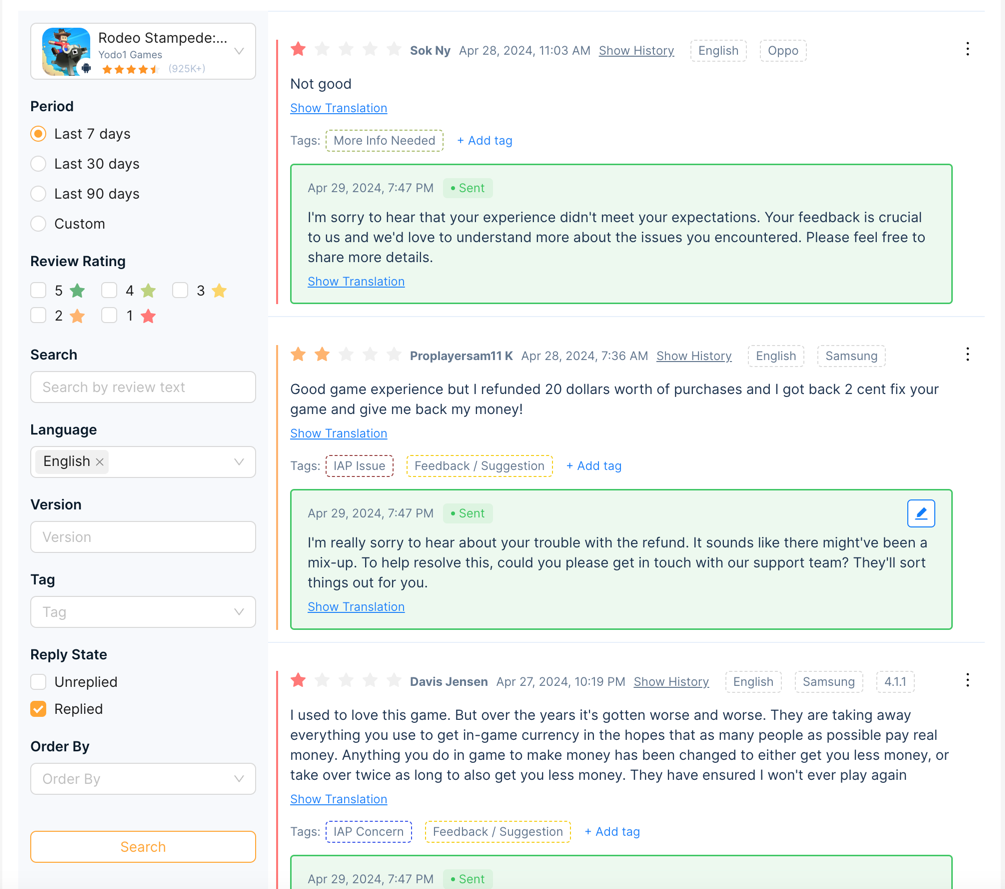 After selecting the desired filters, click "Search" to view the Reviews and their AI Replies.
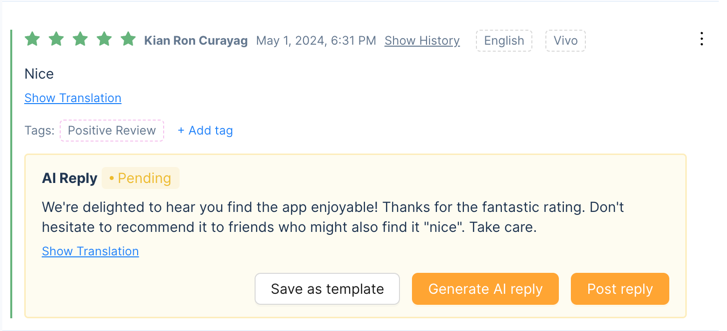
 - If the review has an AI Reply, you will see the suggested response under the "AI Reply" column. Depending on whether the tag is assigned, the AI Reply may be automatically sent to the review.
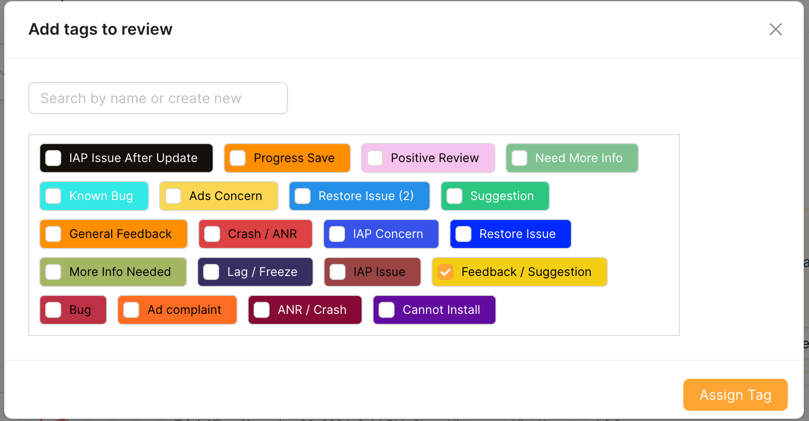
- Click the "Add Tags" button to assign relevant tags to the review for future automation.
Assigning tags helps FanCraft categorize similar reviews and suggest appropriate AI Replies.
- Click "Post Reply" to post the reply to the review.
- If you want to customize the AI Reply, click the "Generate AI Reply" button to modify the response. You may also save the customized response as a new template for future use by clicking "Save as template".
Creating Custom Templates:
-
Navigate to "Reviews" > "Templates" on the sidebar.
-
Click the "Add New Template" button.
-
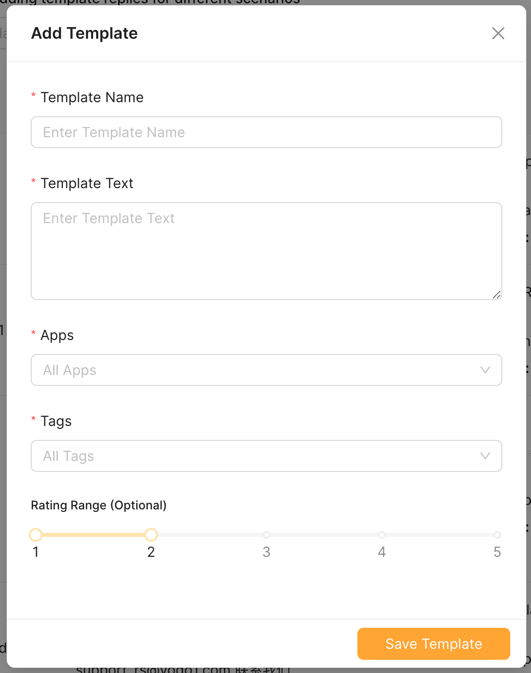
Choose a descriptive name for your template (e.g., "Difficulty Issue," "Bug Report").
-
In the "Template Text" box, craft your response that FanCraft AI can use as an inspiration for future replies to specific apps, tags, and ratings ranges. For example, you may be a development team and want to address your user concerns with low ratings more sympathetically.
-
Click "Save Template" when complete.
Using Tags for Smarter Automation:
- Navigate to "Reviews" > "Tags" on the sidebar. By default, FanCraft provides a set of tags to help you categorize reviews.
- To add a new tag, simply add the tag name, color code, and a brief description of what the tag represents.
Enter a clear and concise tag name (e.g., "difficulty," "bug," "login issue").

- Click "Add New Tag" when complete.
The tags you create will help FanCraft categorize reviews and suggest appropriate AI Replies based on the content of the review and will be used for future assignments.