App Onboarding Setup
Onboarding on FanCraft takes less than 15 minutes. Here's a step-by-step guide to get you started for onboarding with either your Google Play Store or Apple App Store account to FanCraft.
All your access keys are stored securely and encrypted at rest. We only use them to fetch the app details and collect reviews from store to display on your FanCraft dashboard, and enable AI replies.
Google Play Store
-
You can always refer to the Google Play Store documentation here.
-
If you don't have an existing Google cloud project. You can easily create one by heading over to Google cloud console with the same Google email you are registered on Google Play Console.
-
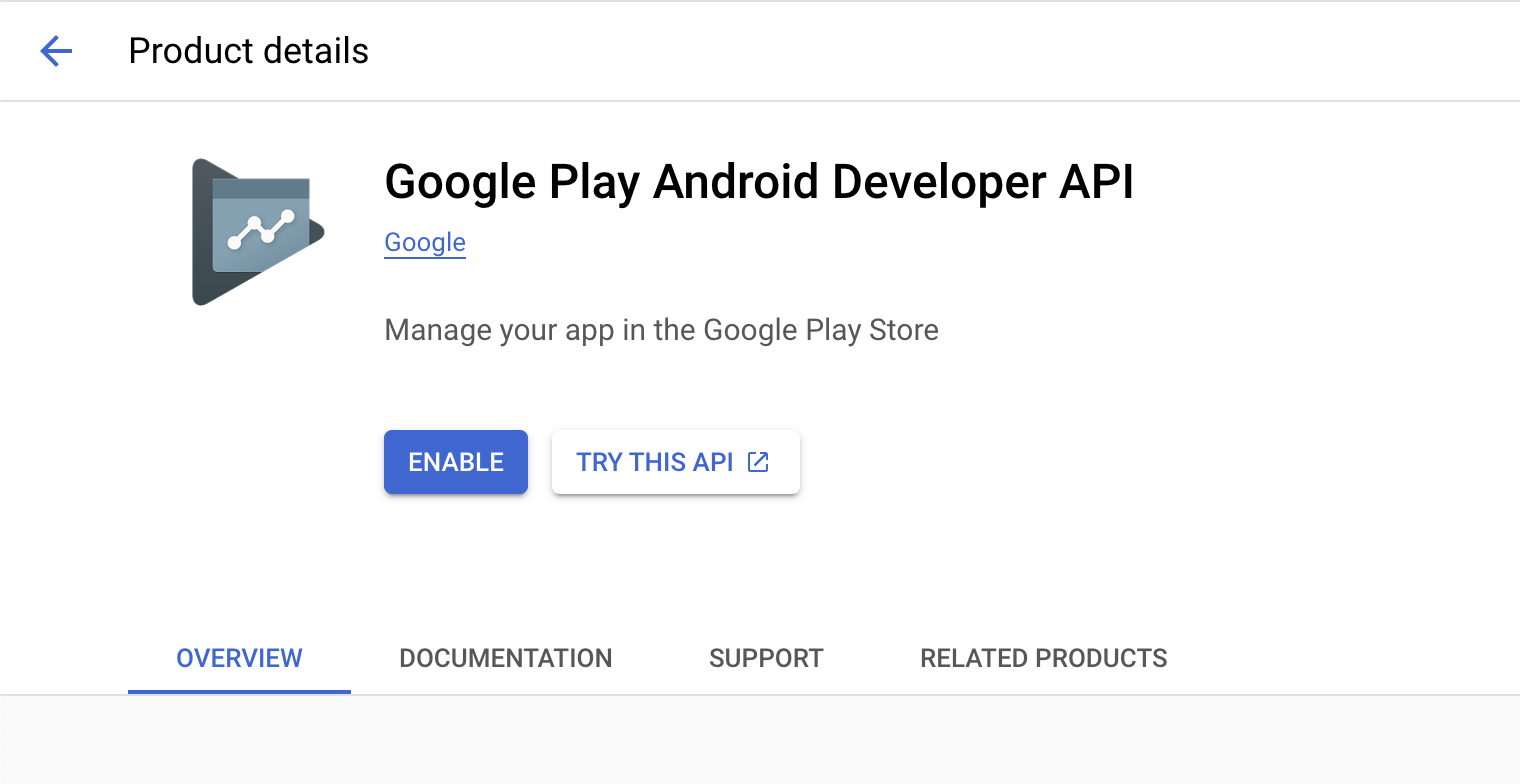
Once the cloud project is created, enable Google Play Developer API Google Play Developer API page
-
Create a service account.
-
-
Once a service account is created, click on the service account’s email.
-
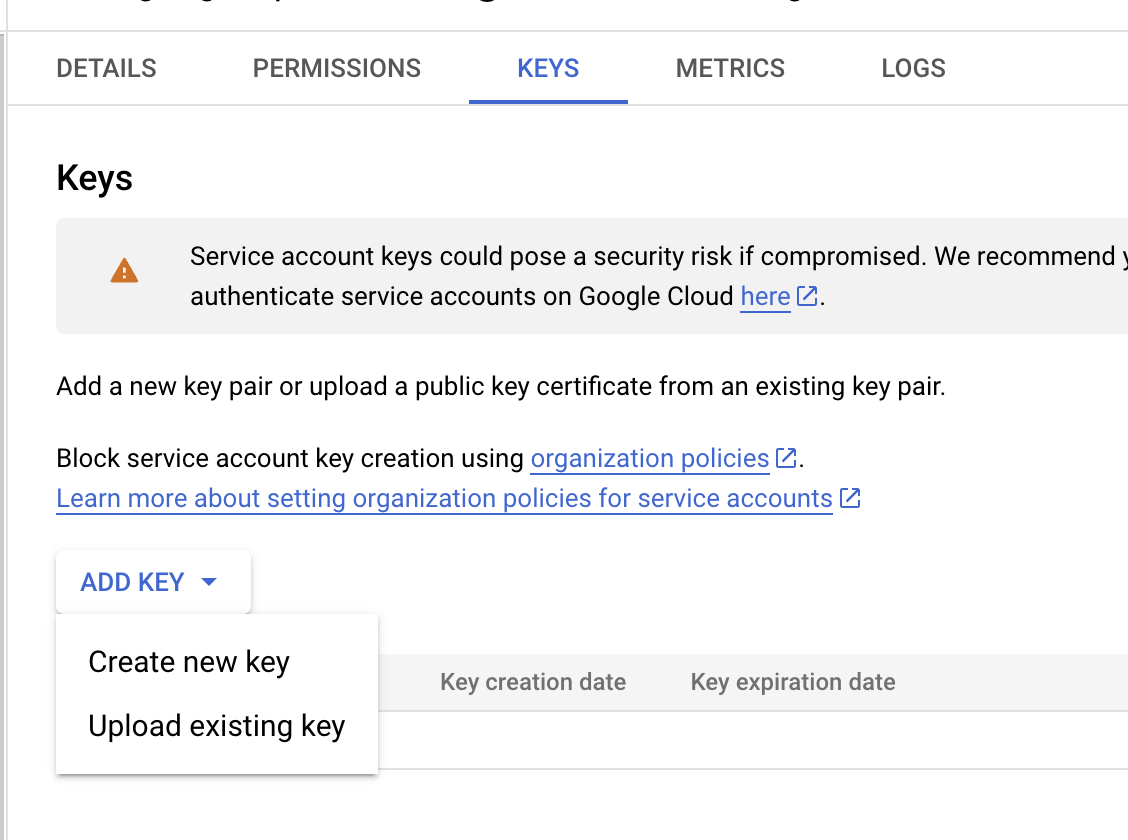
Go to “Keys” tab.

-
Click “Add Key”, and create a new key.
-
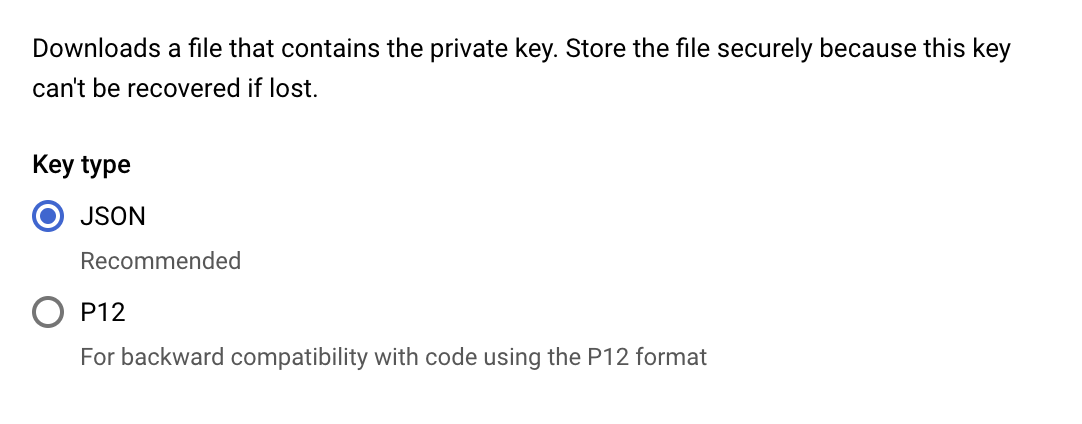
Once the key is created you can download the JSON key.
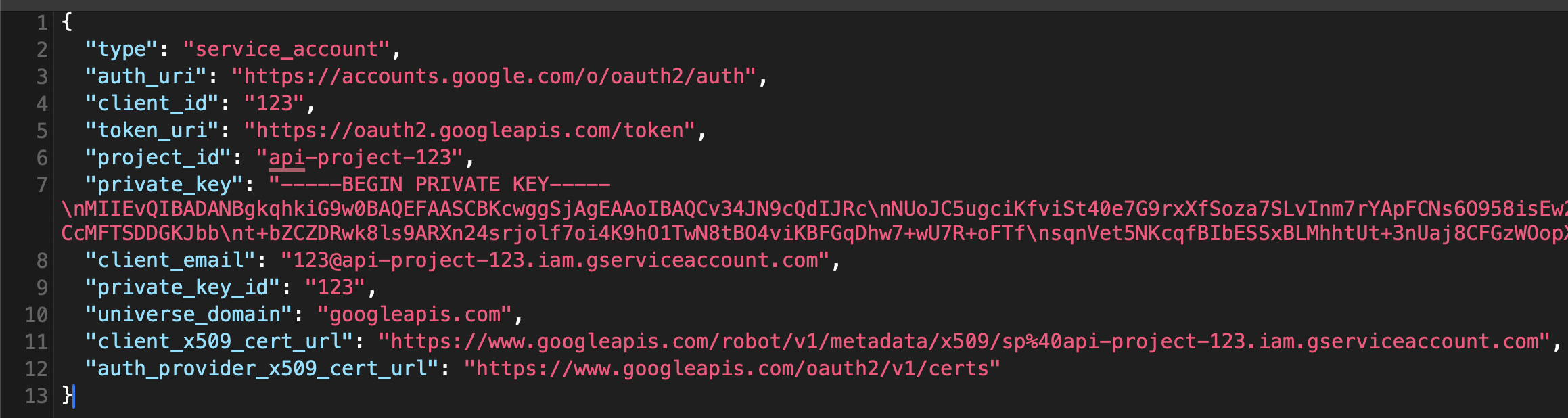
The service key looks something like below.
-
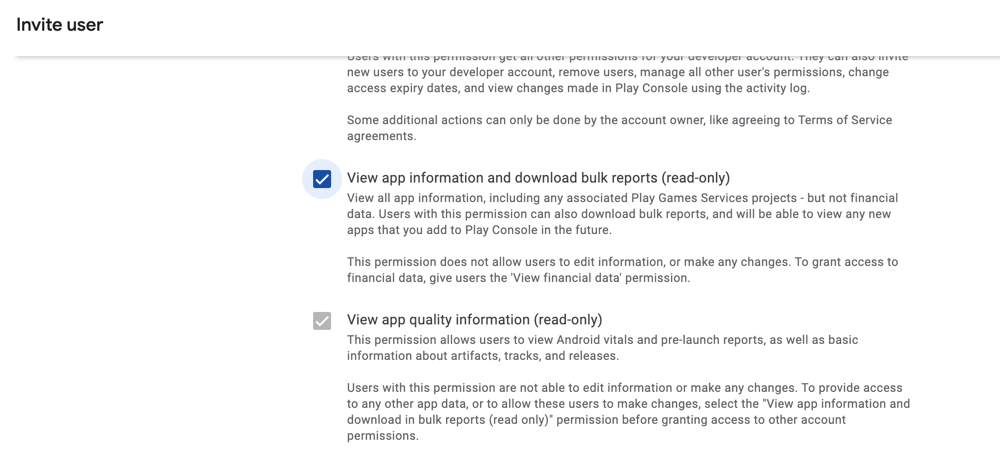
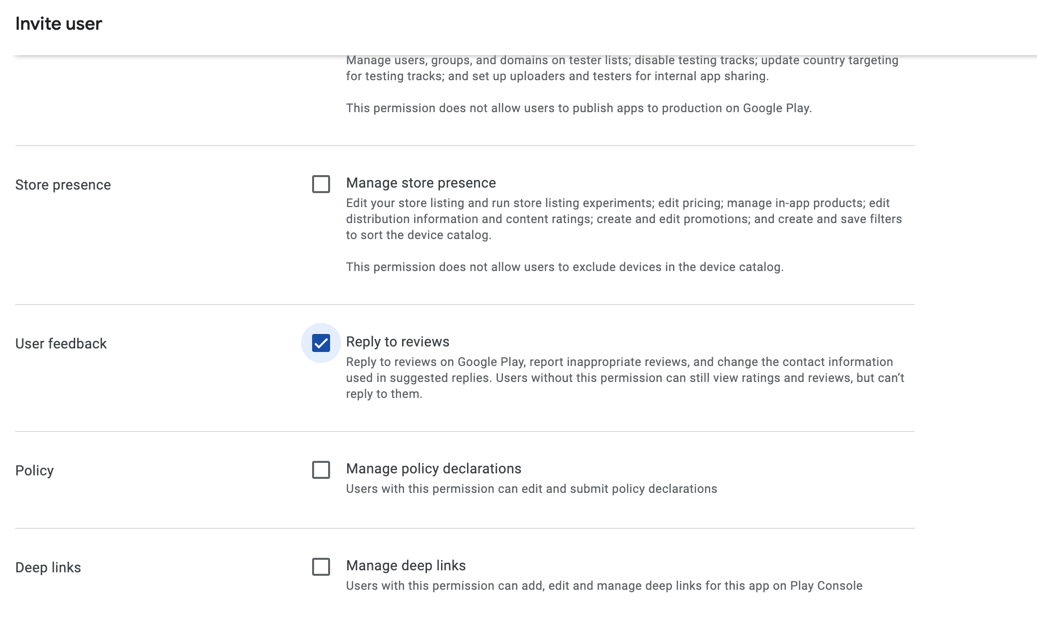
In the Google Play Console, invite the service account email as a user with the "View app information" and "Reply to reviews" roles.
-
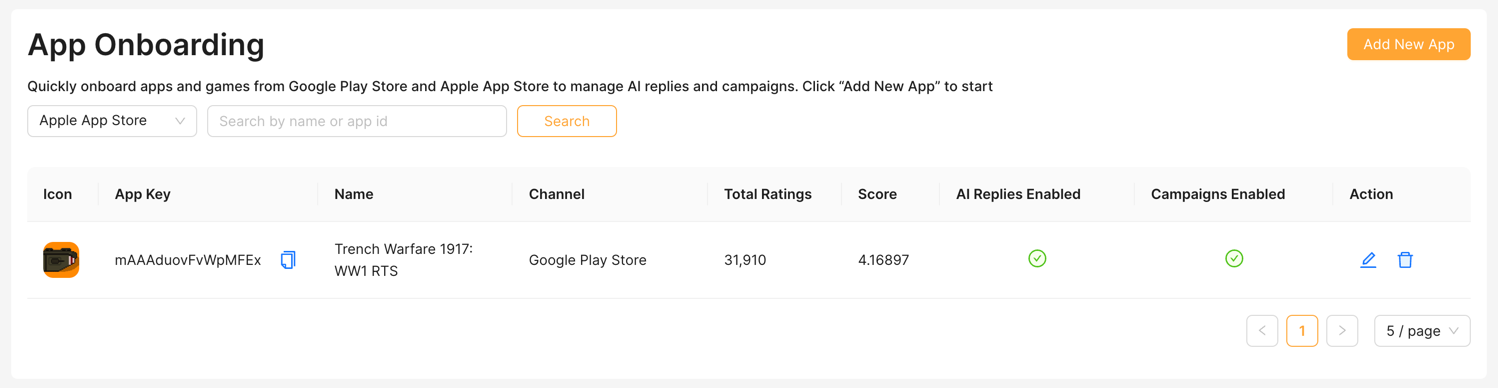
Go to "App Onboarding" on your FanCraft account and click on "Add New App" on the top-right.
-
Upload the
.jsonkey file, add the Google Play Store links of the apps you want to onboard with the support email address you want to use. This helps us personalize the AI replies.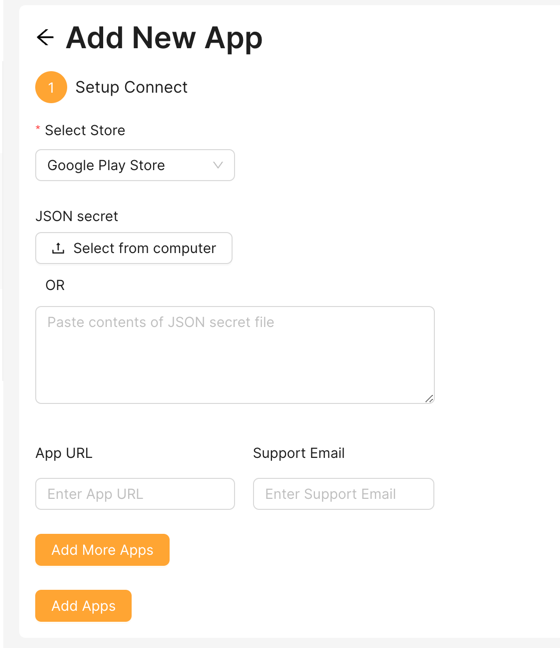
Apple App Store
There are 2 ways to onboard your app on FanCraft for App Store.
(New, Experimental) Through a customer service account:
-
Go to the App Store Connect and sign in with your Apple ID.
-
Go to "Users and Access" and click on the "+" button to create a new user.
-
Select the "Customer Support" role, and add
niteshoswal@yodo1.comwith "Customer Support" permissions, and ability to generate individual keys and click "Next".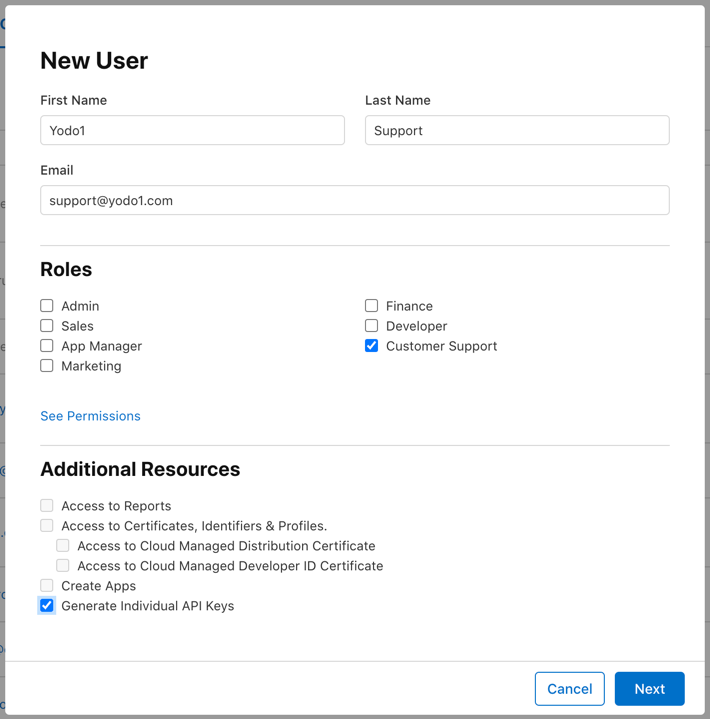
-
Notify your FanCraft account manager that you have added the support email address, to continue the onboarding process.
Through App Store Connect API Key:
-
Create a new App Store Connect API Key in the Users page.
- For more info, you may refer to the App Store Connect API Docs.
- Select the "Keys" tab.
- Give your API Key a “Admin” role.
-
Download the newly created API Key file (
.p8). This file cannot be downloaded again after the page has been refreshed -
Note down the Issuer ID, Key ID, and the newly downloaded
.p8key file. -
Go to "App Onboarding" on your FanCraft account and click on "Add New App" on the top-right. Use the downloaded
.jsonkey to onboard on FanCraft. -
Upload the
.p8key file, the issuer ID, along with the Google Play Store links of the apps you want to onboard on FanCraft with the support email address you want to use for each one of them. This helps us personalize the AI replies.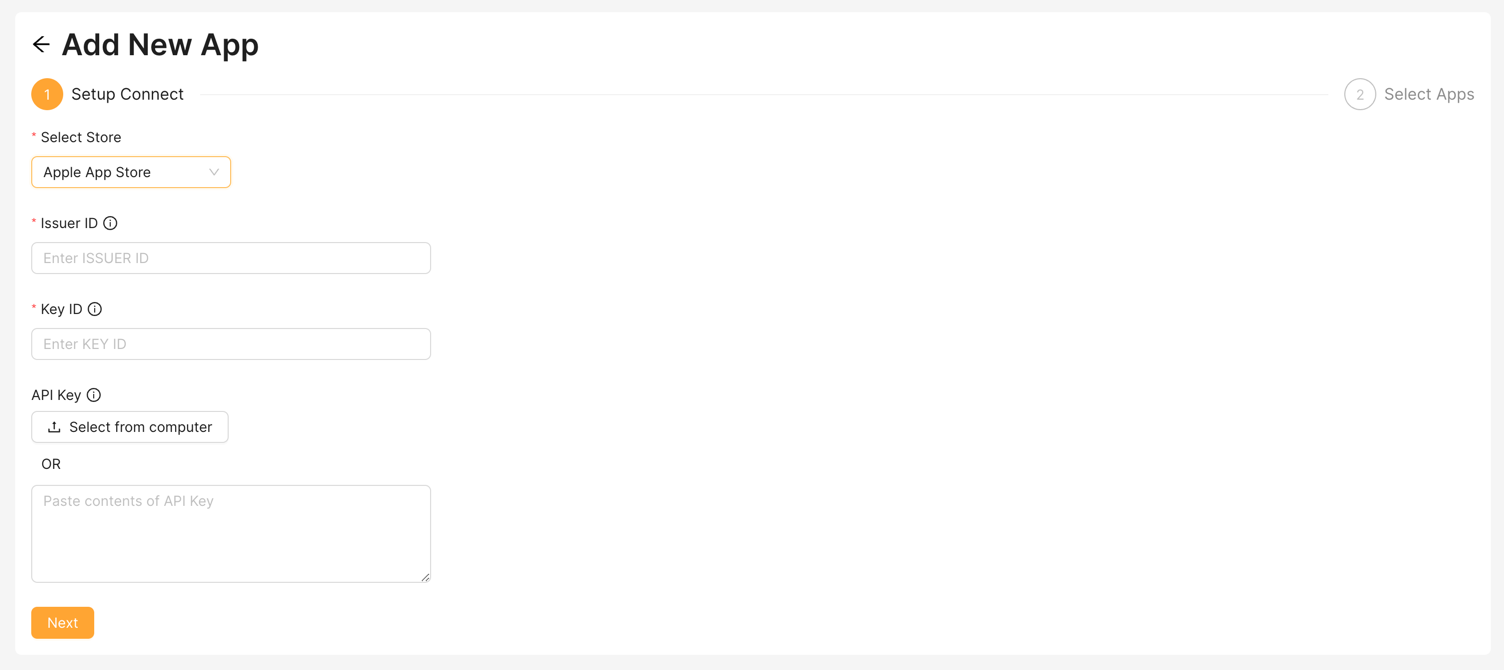
Next Steps
Once you've successfully onboarded your app, we start collecting reviews and feedback from your app store listings. You can also start using AI replies to respond to player reviews. Simply head over to AI Replies on the dashboard to play with AI replies.